


About
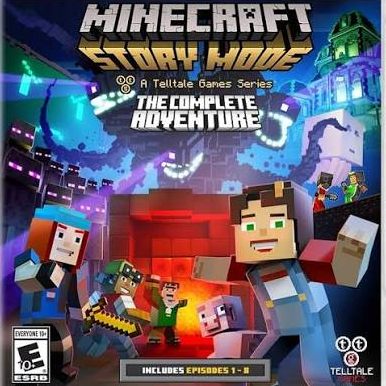
Minecraft: Story Mode follows Jesse and a group of friends through an adventure shaped by conversations, exploration, and decisions. Trouble at EnderCon turns their interest in the legendary Order of the Stone into an urgent search for help. The familiar blocks and creatures provide the setting for a story about how this group responds to danger. Your role is to guide Jesse through each scene, choose what to say, and react when events demand an immediate action. This makes it a useful choice when you want a directed adventure with characters to follow and situations to think through.
Controls and screen prompts
Use the mouse to choose options in the browser launcher. Once the game begins, follow the keyboard and mouse prompts displayed for the current scene. Selectable objects and people have interaction markers; aim at a marker and use the action shown beside it. A conversation presents its own response choices, while an action sequence can ask for a different input. Check the in-game controls menu before a longer session. Exact keyboard mappings and controller or touch support have not yet been verified in this embedded version, so treat its visible prompts as your reference.
How to play: follow the opening scene
Begin your first Minecraft: Story Mode session at the earliest episode available in the game menu. Follow the introduction and learn who is travelling with Jesse before making assumptions about their motives. During your first explorable scene, look for a person to speak with and an object to inspect. Listen for what the group needs next, then connect that request to the nearby interactions. A useful opening goal is to complete one conversation, resolve the immediate obstacle, and understand the next objective. Keeping the task this small helps you learn the rhythm of the adventure without needing a walkthrough for every choice.
Make conversation choices with a purpose
Conversations in Minecraft: Story Mode give your version of Jesse a voice. Some decisions have a visible countdown, so read the available responses as soon as they appear. Think about the intention behind a reply: are you reassuring a friend, asking for information, or committing the group to an action? Choose an approach you can explain to yourself and observe how the other characters respond. When two answers both seem reasonable, use what you know about the people involved to decide. Following one consistent attitude for a scene can make its outcome easier to understand and remember on a later playthrough.
Explore and solve the immediate problem
Exploration gives Minecraft: Story Mode room to connect its conversations with practical problems. Inspect the objects the scene makes available and pay attention to clues about what an item might accomplish. Crafting moments ask you to arrange available materials for the task in front of you. Before placing anything, identify what you are trying to make and read the instructions shown at the table. If you become stuck, revisit the last request from a character and compare it with the objects you have already examined. Changing one part of your approach at a time makes it easier to notice which clue you missed.
Read each action cue
Action scenes in Minecraft: Story Mode require timely responses. Watch the displayed cue closely: a single press, repeated presses, and a directional movement are different requests. A pulsing button can indicate repeated input, so continue only while that instruction remains visible. Keep your attention on the next cue after an action succeeds. For a first attempt, aim to recognize the prompt and respond accurately; speed becomes easier as the pattern grows familiar. If a scene repeats after a mistake, focus on the point where the input changed and adjust that response on the next attempt.
Choose your browser settings before playing
The supplied launcher offers Quality, Frame rate, Anti-aliasing, Shadows, and Multithreading settings. Auto quality and a 60 fps limit are useful starting settings to evaluate on your own computer. If movement appears uneven, try a lower quality option and compare the same short scene. Changing these launcher settings reloads the player, so make adjustments before investing time in the story. Multithreading may be disabled when the game is embedded; the loader can select a single-threaded build automatically. The first start downloads game resources, and the launch button remains unavailable until preparation finishes. Loading time and performance depend on the connection and device.
Episodes and progress in this browser version
This Minecraft: Story Mode entry opens the WASM Edition hosted at mcsm-web.pages.dev. The included episode range and precise build version remain unconfirmed. Start with a short session before committing to a full episode: watch for the game's save indicator, return through its menu, and check whether the expected resume point is available. Persistence after closing the browser has not yet been verified here. Audio, full gameplay, and mobile input also await testing. Keep notes about your current episode and scene if you need to report a problem, since a visible launcher alone does not establish that the adventure can be completed.