
About the overhead city
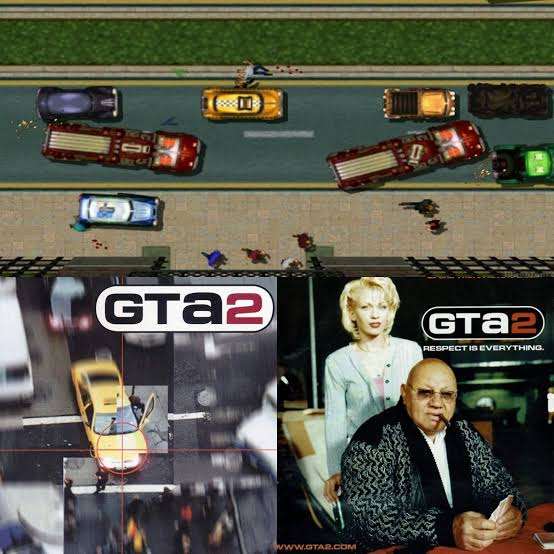
GTA 2, short for Grand Theft Auto 2, combines driving, on-foot action and gang jobs in a city viewed from above. The browser entry presents three districts: Downtown, Residential and Industrial. Its single player introduction focuses on earning gang respect, taking their jobs and keeping the police off your back. Criminal activity and violence are central to the setting. The overhead view makes the arrangement of streets and nearby traffic part of deciding how to reach an objective.
This entry opens in single player. You can explore streets between assignments, change vehicles and learn the district before committing to a job. Downtown is the first area; its competing gangs are the Zaibatsu, Yakuza and Loonies. Working for a gang changes how it treats you, while hostile territory can make a simple journey dangerous. Watch the respect indicators as well as the road, because a destination can be easy to reach but difficult to leave safely.
Start the browser version
Press Play game on this page to load GTA 2. The embedded client may first prepare its game files; if its landing page appears, choose Play now to continue. This Grand Theft Auto 2 entry loads a PLAY, OPTIONS and QUIT main menu after preparing its initial game files. Keep the tab open while that initial download completes. The site button opens the client; PLAY in the game menu starts your game session.
Click inside the game display before using the keyboard. Menus use the arrow keys to move between choices, Enter to confirm and Esc to go back. These menu keys are separate from the movement bindings used during play. OPTIONS opens the browser edition’s Controls screen, where you can inspect assignments before starting. If movement keys appear unresponsive, first check whether you are still in a menu or have clicked outside the embedded display.
Movement, vehicles and combat controls
The default GTA 2 movement keys are W for forward, S for back, A for turning left and D for turning right. A and D are turning controls, rather than labels for sideways movement. For this Grand Theft Auto 2 browser edition, use Enter to get into or out of a car. Space has two roles: jump while on foot, or handbrake while in a vehicle. Learn those context changes before trying to combine movement, vehicle entry and combat.
L shoots or punches, depending on the current weapon. J selects the previous weapon and K selects the next weapon. I is Special 1, described by the control screen as horn and car extras; O is Special 2. The Controls screen does not give O a more specific universal function, so its effect should be read in the current game context. P displays status. These are the browser defaults; a previously saved custom layout can change the assignments.
Map, radio and menus
GTA 2 adds a browser map on M. Its map includes waypoints and the current job, giving you a place to consult the objective alongside the district layout. In Grand Theft Auto 2, that is more useful than repeatedly guessing a direction at similar-looking junctions. Inside the map, drag or use W/A/S/D to move the view, and scroll or press Q/E to zoom. Click to set a waypoint, right-click to clear it, and press Space to center on your position. M or Esc closes the map.
R toggles the radio and T changes station while you are in a car. The minus key and equals key adjust view distance. Esc opens the game menu, and F5 opens the browser client’s Saves screen. These shortcuts belong to the embedded client. Read the Saves screen’s prompts when choosing a slot, and distinguish its load action from starting a new session. Use the game menu for ordinary navigation; the site Reload button restarts the whole embedded session.
Change the key bindings
To customize GTA 2, choose OPTIONS from its main menu or Controls in the toolbar beneath the game display. Click the action you want to change, then press its new key. Esc cancels a pending key assignment; the Default keys button restores the supplied layout. The Controls screen is part of this Grand Theft Auto 2 browser edition, so an old keyboard guide for the original desktop release can show different defaults.
The menu still uses arrows, Enter and Esc after movement keys are changed. Some browser shortcuts are reserved and cannot be assigned; the control screen reports that restriction when it applies. If a chosen key is refused, select another key rather than assuming the change took effect. Inspect the displayed binding before closing the screen. This also helps distinguish a customized movement layout from a focus problem when returning to play.
Jobs, respect and progression
In GTA 2, walk over a ringing payphone to answer a gang job. Green, yellow and red mission phones correspond to easy, medium and hard assignments. Grand Theft Auto 2 uses respect to control access to more demanding work, so check the gang indicators before choosing a phone. Favor with one group can create hostility with another. Read the messages at the bottom of the display and follow the purple mission arrow toward the active target.
Each area announces a target score for moving on. Completing gang jobs earns points, and successful missions increase the bonus multiplier applied to later scoring. That gives a first session a concrete goal: take an accessible job, complete its instructions and build toward the area target. Use the browser map to find job locations and plan the next trip. As an editorial practice suggestion, learn steering and vehicle entry before tackling a harder assignment; those skills make it easier to concentrate on the objective once the job starts.